
Welcome to GravityFlash
GravityFlash is your professional portal for accessing and downloading high-quality digital assets. This guide will teach you how to navigate, preview, and download content efficiently.
Portal Access
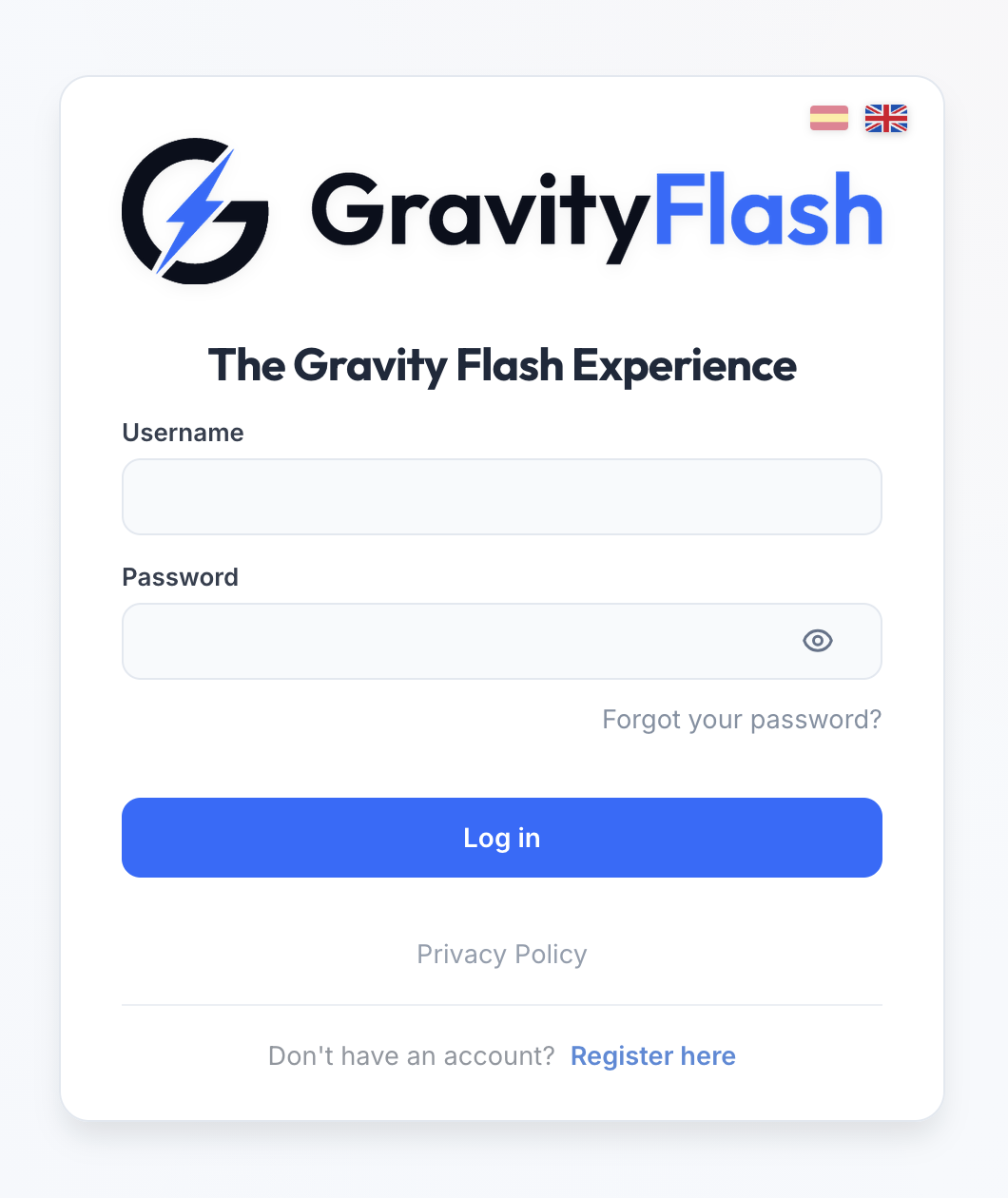
Once your account is activated, log in with your email and password. If you have forgotten your password, you can request a reset link from the same home screen.
Registration and Codes
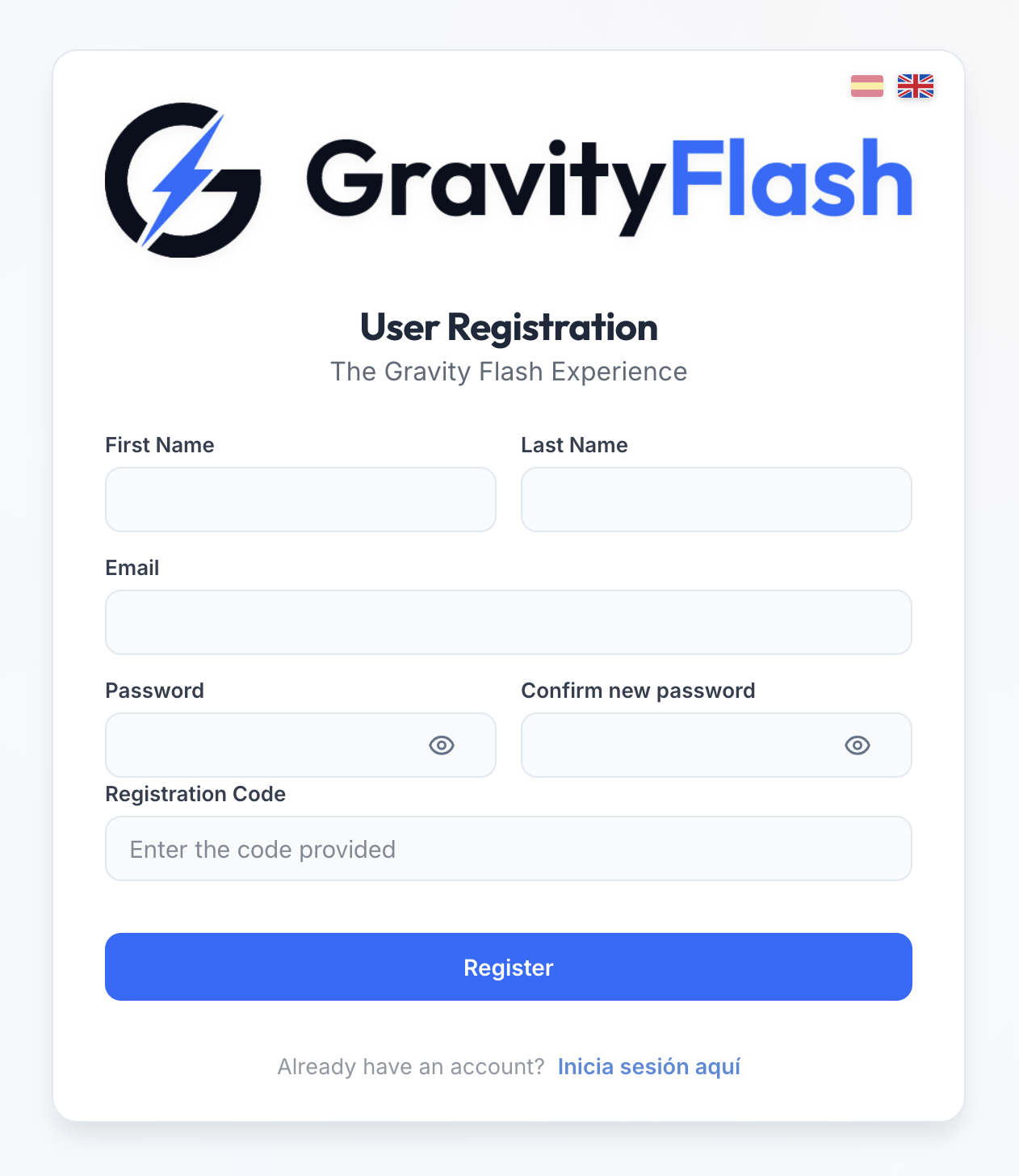
Depending on your project's settings, you may be able to self-register. If you don't have an account, you must use the specific registration link provided by your manager.
Using Registration Codes
In many cases, the administrator will set a mandatory Registration Code to ensure only authorized personnel access the files. This code will automatically assign you to the appropriate repositories. If the project does not have codes enabled, your account must be manually registered by an administrator.
Content Browsing
The main interface allows you to navigate intuitively through project folders without heavy loading times.
Navigation and Views
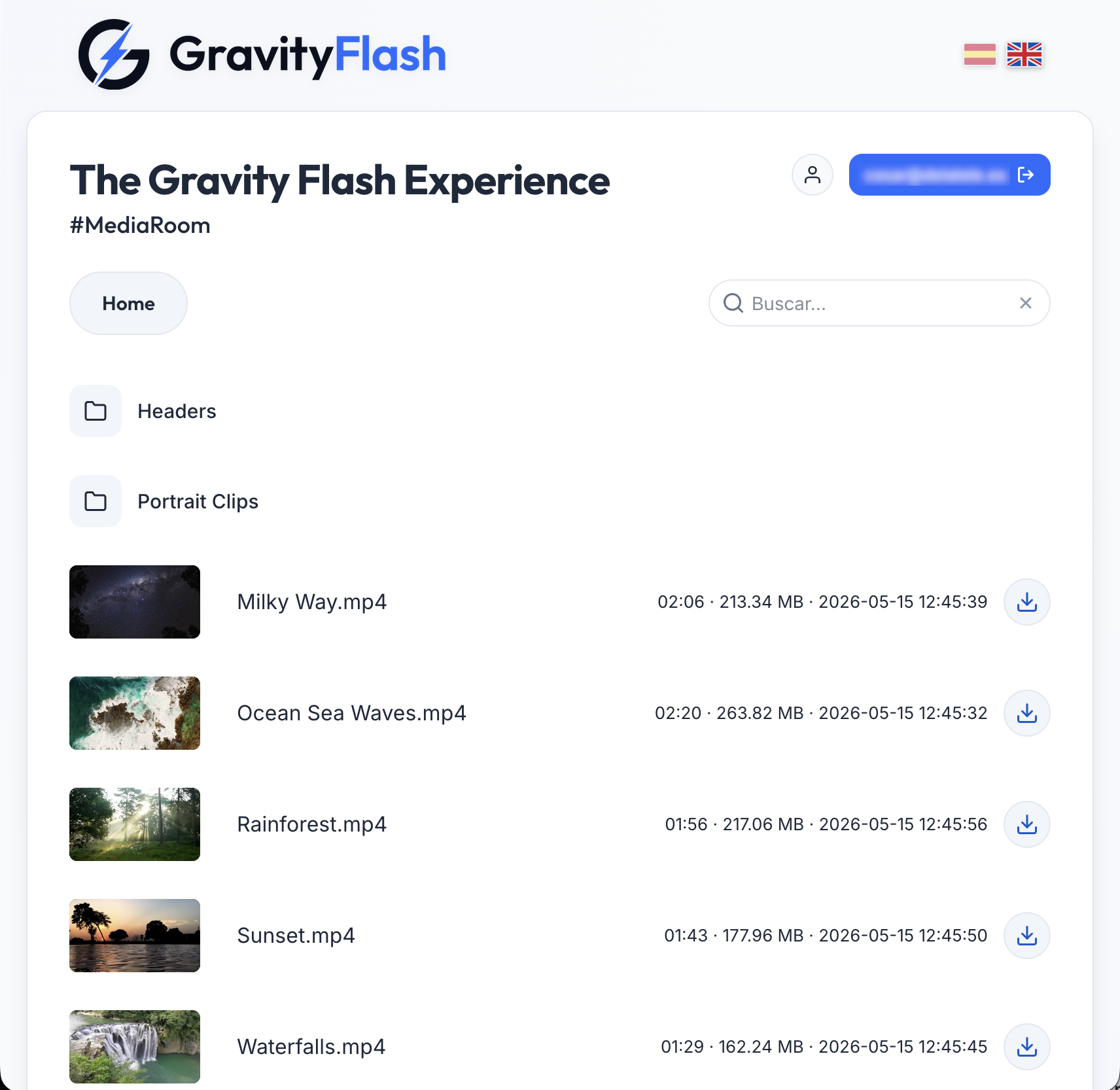
Use the Repository Selector located at the top (under the project title) to switch between different assigned sections (Press, Photos, Video, etc.). At the top of the list, breadcrumbs allow you to know which level of the structure you are in at all times and go back with a single click.
Professional Viewing
GravityFlash is optimized so you can review material before deciding what to download.
Smart Video Player
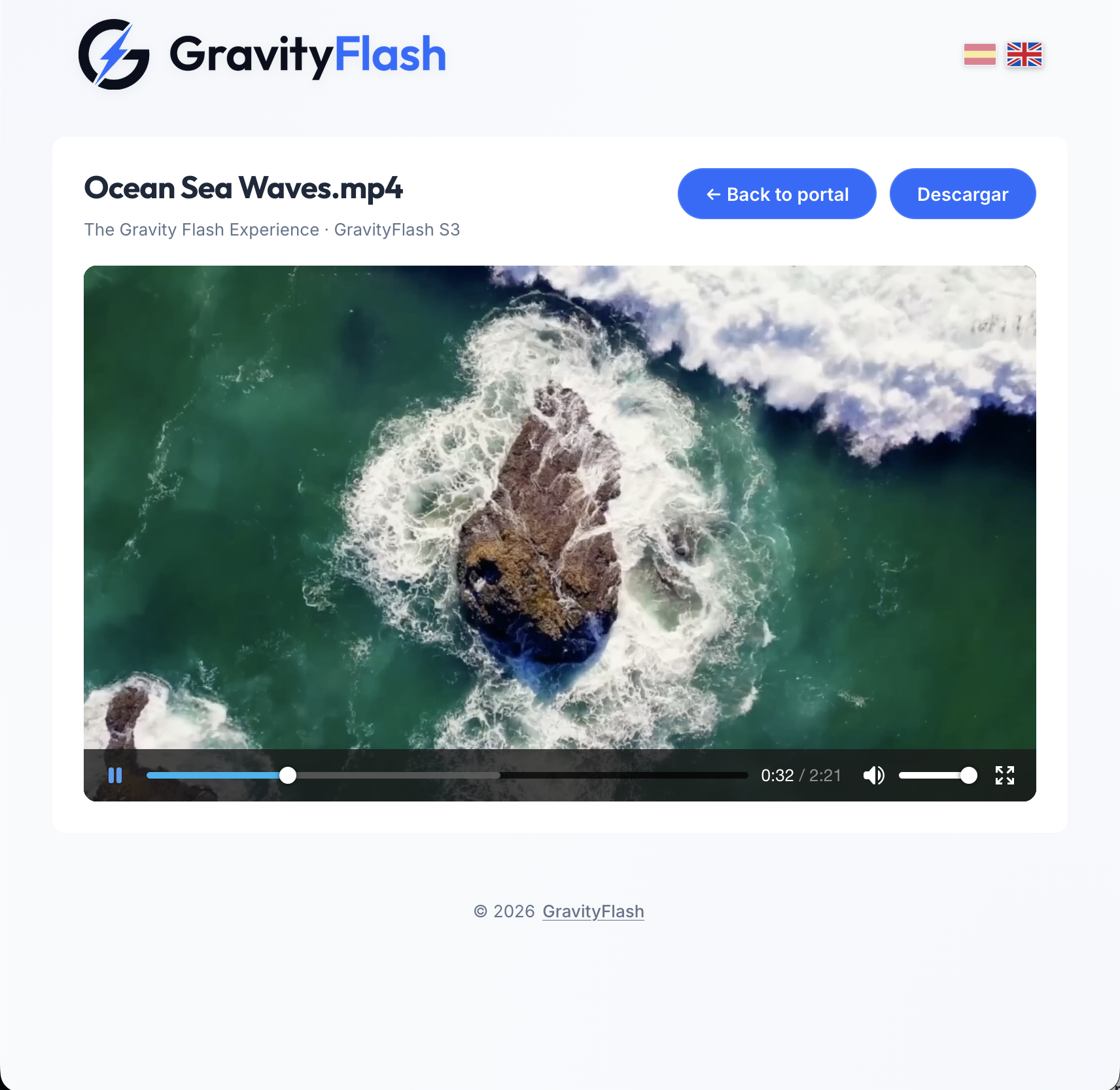
Click on any video to open the player. It supports instant preview (scrubbing) and automatically detects files in 4K/UHD resolution. Additionally, when hovering over videos in the list, you will see an animated thumbnail with a summary of the clip.
Special Formats (PSD, TGA, TIFF)
Unlike other portals, GravityFlash allows you to view professional design files (Photoshop, TGA, TIFF) directly in the browser without the need for external software. The system generates a dynamic preview for your immediate review.
Agile Search and Filtering
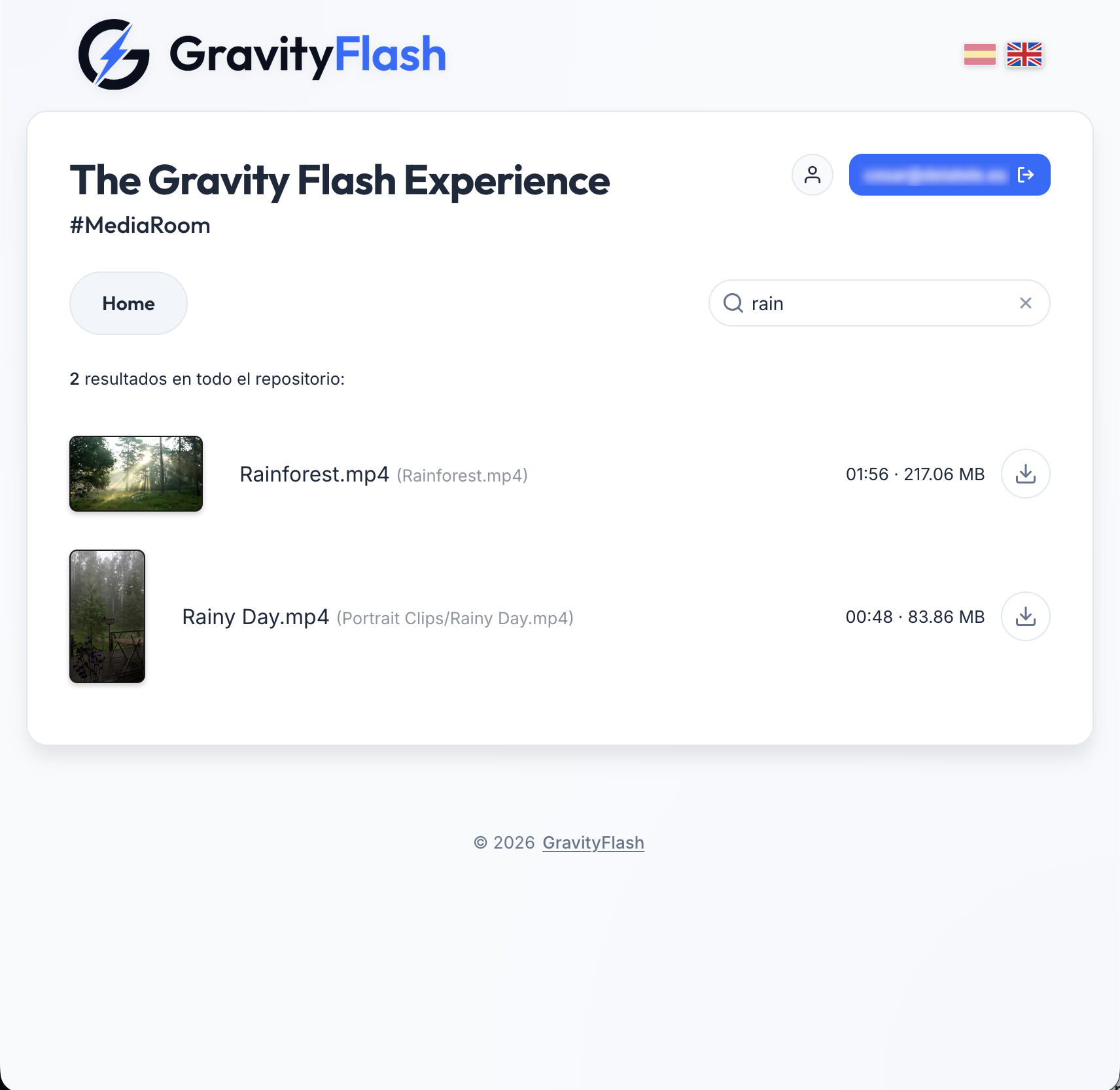
Use the magnifying glass at the top to search for files by name. Results are filtered in real-time. You can also use the quick filter buttons to see only videos, photos, or documents, saving you time in structures with thousands of files.
Viewing and Downloading
GravityFlash offers two main methods to obtain your files quickly and easily.
Detail Panel and Preview
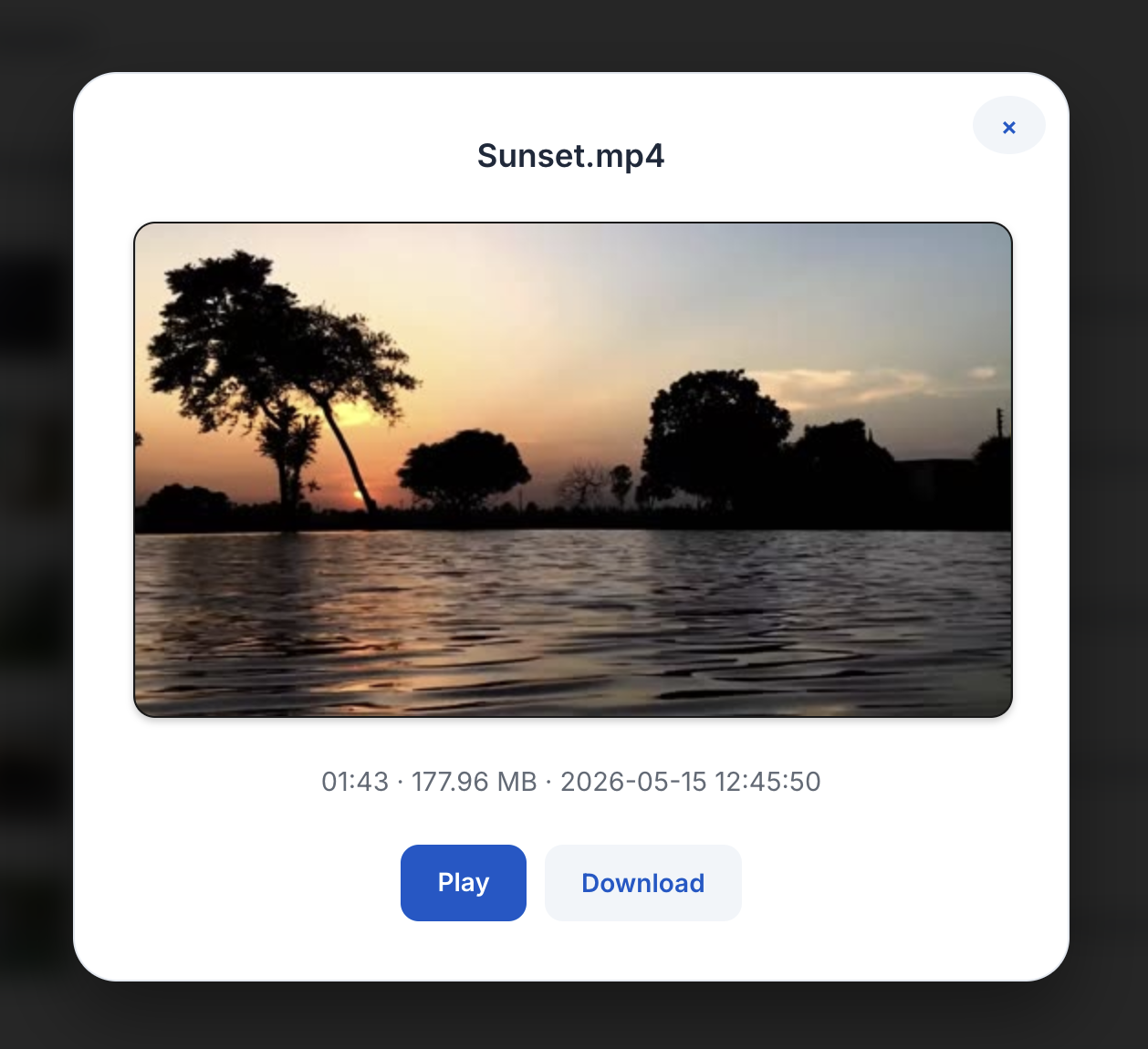
By clicking on the name or thumbnail of any file, a Detail Panel will open. In this view, you can see an enlarged preview, consult technical metadata (size, date, resolution), and find the Direct Download button. You can also download any file without opening the details using the arrow icon located in the main list.
My Profile and Preferences
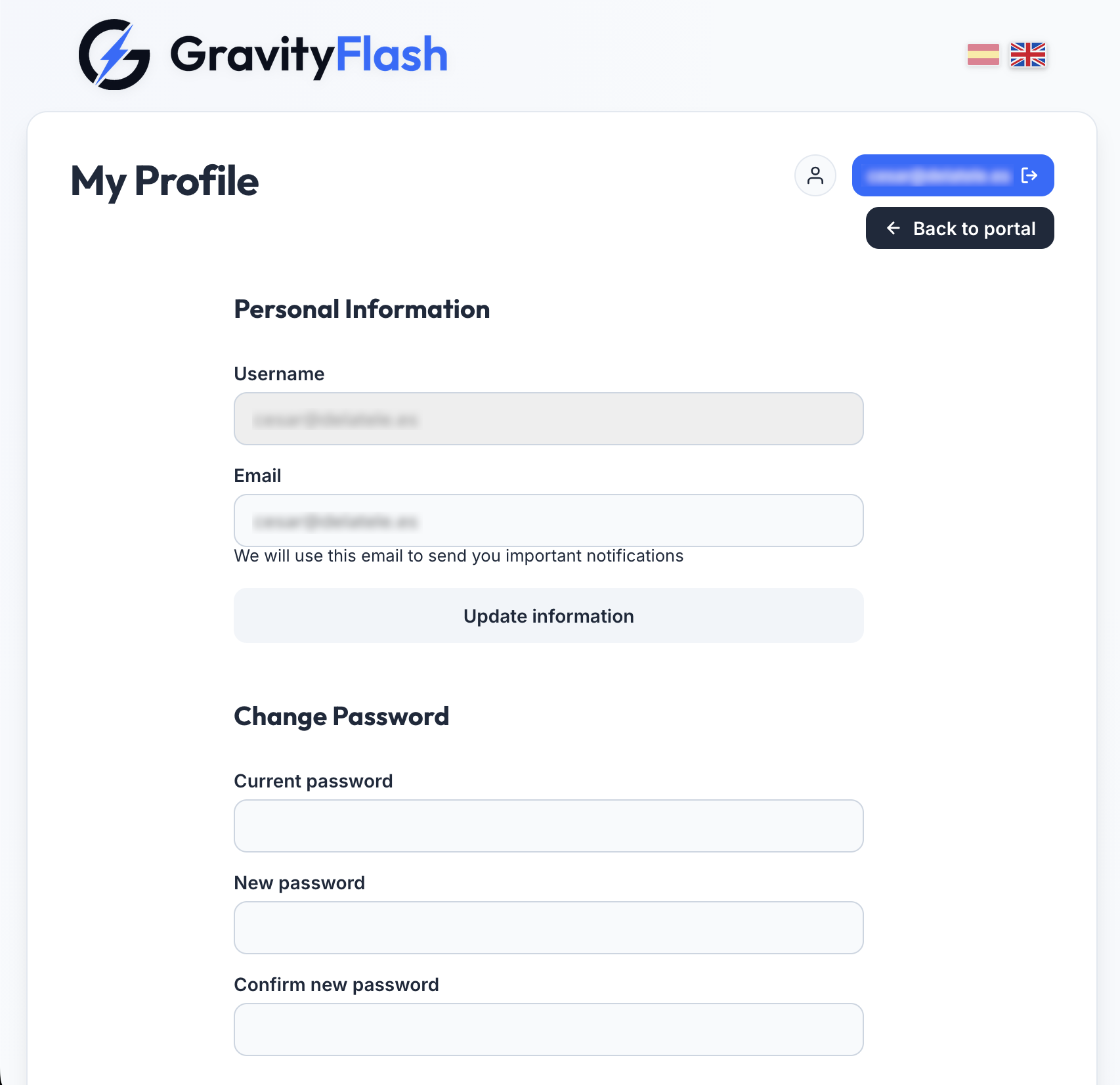
From your profile menu (top right corner), you can update your name, change your password, and select the portal language (Spanish / English). Your preferences will be saved for your next visit.